How to audit a browser-based file tool without trusting its privacy claim

“Processed locally” is a useful description, but it is not proof. A browser page still downloads code, may load a model or codec, and can make network requests for unrelated features. The useful question is narrower: does the selected file’s content leave the browser during the operation?
This guide describes a test that another developer can reproduce against a browser-based file tool. It also records the scope of PriviTools’ own evidence without turning one test run into a universal security promise.
1. Use a canary file, not a visual inspection
Create a small PDF or image whose text contains a unique marker, for example:
LOCAL_PROCESSING_CANARY_2026_08_15_7F3AThe marker must not appear anywhere else in the page, URL, fixture name, or test metadata. Run the operation, then observe every request made by the page. Fail the test if the marker appears in a request URL or request body. Also reject unusually large bodies sent to origins that are not explicitly part of the page’s documented dependency path.
This catches the important failure mode: a tool can show a correct result while silently sending the original bytes to a server.
2. Follow the bytes through the browser
For a local PDF operation, the expected path is:
File picker → File / ArrayBuffer → browser-side library or Worker → Blob → downloadFor a Worker-based operation, inspect both sides of the message boundary. postMessage()
does not by itself prove that data stayed local; it proves only that the page handed data to
another execution context in the browser. The Worker must also be checked for uploads,
remote job APIs, and unexpected dependencies.
3. Separate dependencies from user content
A local tool may download JavaScript, WebAssembly, fonts, or a model before it runs. That download is different from uploading the user’s selected document, but a privacy review should record both facts. A useful report names the dependency origin and states whether the request contains application code or user bytes.
Do not write “no network requests” unless the page has actually been tested under the exact deployment being described. The honest claim is often “the tested operation did not send the selected file bytes.”
4. Test the exceptions deliberately
The tool path and the surrounding website are not the same thing. Check at least:
- the optional feedback form, which may send the text a person voluntarily submits;
- development-only fallback code that must not be mistaken for the production path;
- codec, OCR, or model downloads that happen before an operation;
- error paths, retries, and cancellation;
- redirects and download URLs created by the browser.
For PriviTools, the feedback form is an explicit exception: it sends a written suggestion to the form provider and does not attach the selected tool file. The production PDF and video flows covered by the repository tests are treated separately from that feedback request.
5. Make the evidence inspectable
A useful audit should publish four things:
- the exact scope and deployment date;
- the test fixture and canary strategy;
- the request origins that are allowed or rejected;
- the code paths and test command a reviewer can inspect.
PriviTools publishes a machine-readable local-processing manifest with those boundaries. The repository’s privacy tests use synthetic canary data and fail when the marker appears in outgoing request data. They are evidence for the covered flows, not a replacement for an independent review of a new build.
What this proves—and what it does not
This method can provide strong, repeatable evidence about a specific operation in a specific build. It does not prove that every tool, browser extension, device, dependency, or future deployment behaves identically. It also does not protect a file after a person chooses to send it elsewhere.
That distinction is the difference between a privacy statement that can be checked and a marketing slogan that asks the reader to trust the vendor.
For the broader architecture and the browser APIs involved, see how PriviTools processes files in the browser. To try a specific operation, use Merge PDF or Compare Two PDFs and review the limits on the individual tool page.
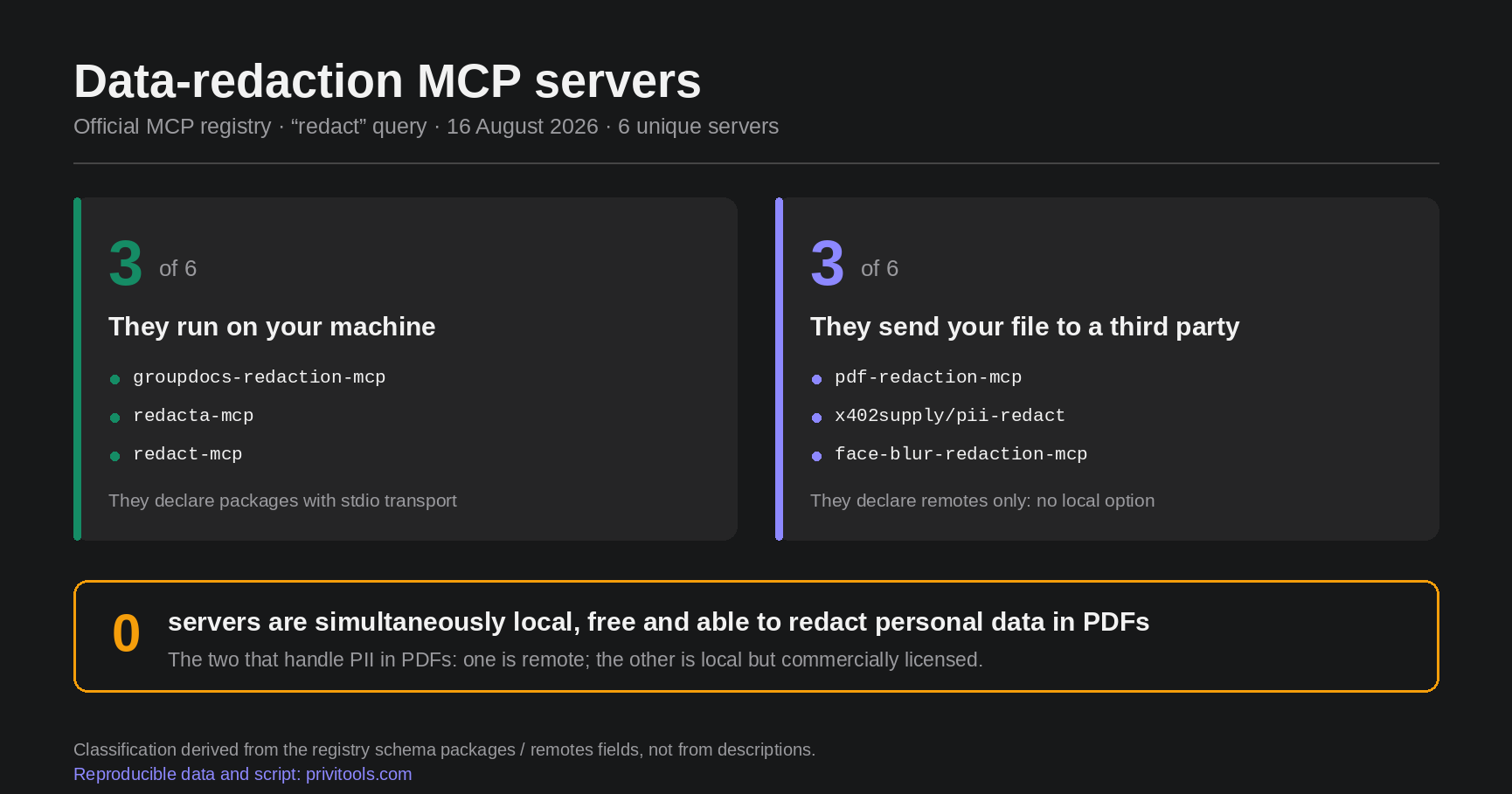 When AI redacts your PDF, where does the file go?
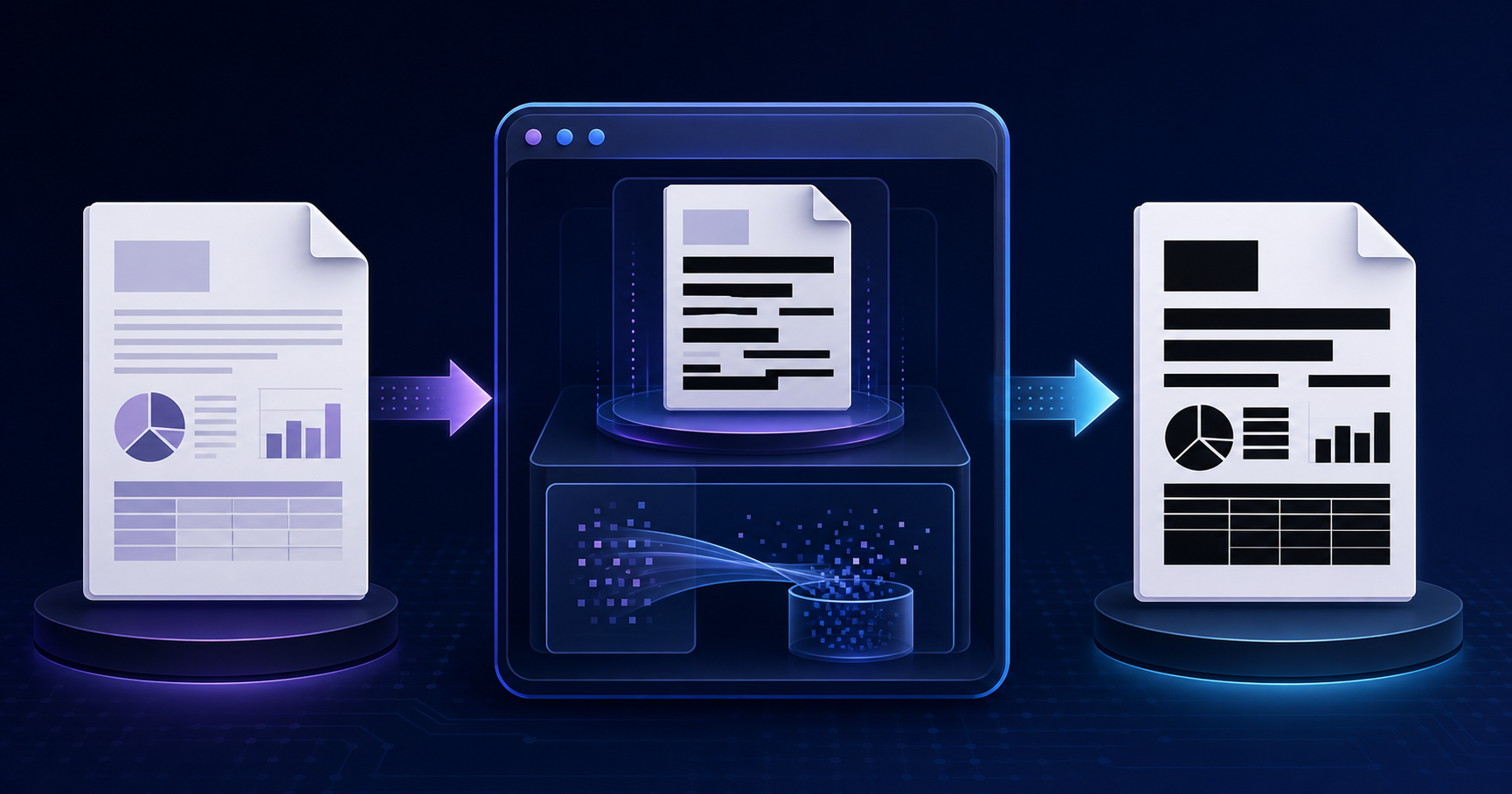 How to redact a PDF permanently: a black rectangle is not enough