How to redact a PDF permanently: a black rectangle is not enough
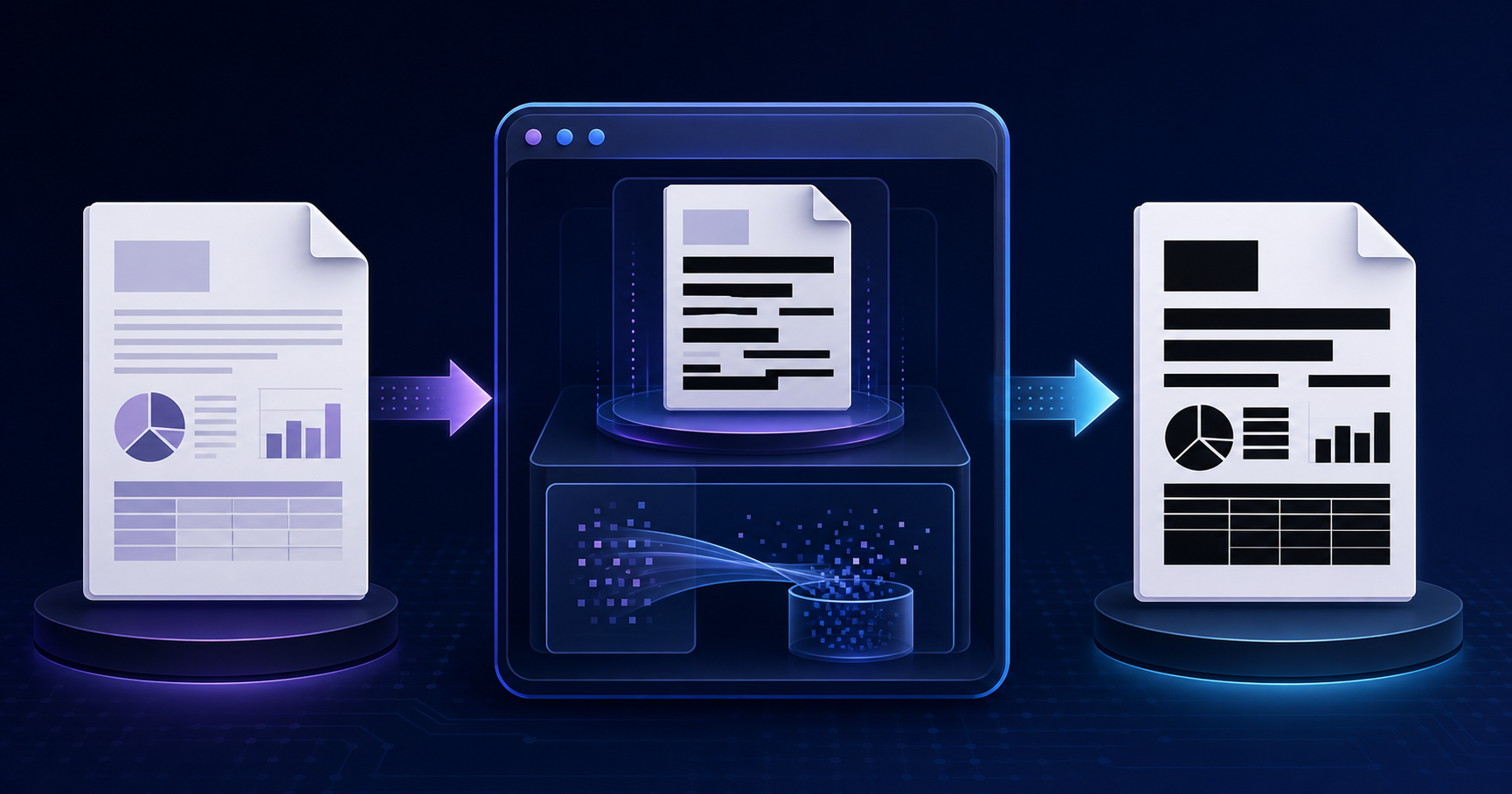
A black rectangle can hide a value on screen without removing it from the file. That is the difference between a PDF that looks safe and one that has been prepared for sharing.
This guide provides a practical process for reviewing a copy before sending it. It does not replace your organization’s legal, security, or records requirements: for high-risk documents, keep the protected original and arrange an independent review of the final copy.
Hiding is not redacting
In a PDF, a black shape can remain a visual object above the original text layer. In that case, the text may still be selectable, searchable, or extractable. Before sharing a copy, make three simple checks:
- Select around the covered area and try copying and pasting into a text editor.
- Search the document for the value that should have disappeared.
- Open the file in another reader or text-extraction tool.
If any of these reveal the value, the document has not been redacted correctly.
Four operations worth keeping separate
These terms are often used as if they meant the same thing, but they do not:
- Hiding: drawing a layer or annotation over existing content. It may be reversible.
- Redacting: permanently removing marked content.
- Rasterizing: rebuilding a page as pixels. It can remove the text layer from that copy, but also limits searching, selection, and accessibility.
- Sanitizing: finding and removing information that is not obvious on the page, such as metadata, comments, attachments, layers, actions, or hidden content.
Adobe treats visible redaction and hidden-information cleanup as related but distinct steps. Its redaction guide explains that hidden data should also be removed where applicable.
A process before sharing
1. Work on a copy
Keep the original with its permissions and traceability. Use a clearly named copy for sharing so you can repeat the process without losing the source document.
2. Identify what must disappear
Review text, images, signatures, codes, filenames, and visible headers or footers. Treat automatic detection as help for finding candidates, not as a final decision: it can miss data, misread context, or create false positives.
3. Apply permanent redaction
Your tool must create a copy where marked content does not remain under a visual layer. PriviTools generates a rasterized copy for processed areas, which removes the text layer from the resulting copy. Review every page before sharing it.
4. Sanitize hidden information
Visible redaction does not guarantee that metadata, comments, attachments, or layers have gone. Inspect document properties and remove items that should not travel to the recipient. In PriviTools, you can complement the review with the PDF metadata remover.
5. Verify the final copy
Repeat the copy/paste and search checks. Review document properties and open the copy in another viewer. For high-risk documents, ask someone who did not do the redaction to try to find what was meant to be removed.
OCR needs another review
Running OCR on a redacted version can create a new text layer. If OCR misreads a covered area or a workflow mixes files, it can reintroduce information that was removed. Apply OCR to the working document before redaction, or verify the copy again after any later processing.
Privacy and obligations
Sharing personal data by mistake can be a personal-data breach, but incidents do not all have the same consequences and do not automatically mean a fine. Spain’s data-protection authority defines a breach as an incident involving destruction, loss, alteration, unauthorized disclosure, or unauthorized access to personal data; notification depends in part on the risk to people. Read the AEPD guidance.
Document which copy was shared, with whom, and what checks were completed. That traceability is useful even when no incident occurs.
Final checklist
- I worked on a copy, not the original.
- I reviewed every page and visible value.
- I cannot copy, search for, or extract the redacted value.
- I reviewed metadata, comments, attachments, layers, and actions where relevant.
- I did not run a later process that recreated a text layer without checking the result.
- A second person verified the copy when the document is high risk.
The tool reduces repetitive work; the decision to share remains human. Always review the final PDF before sending it.
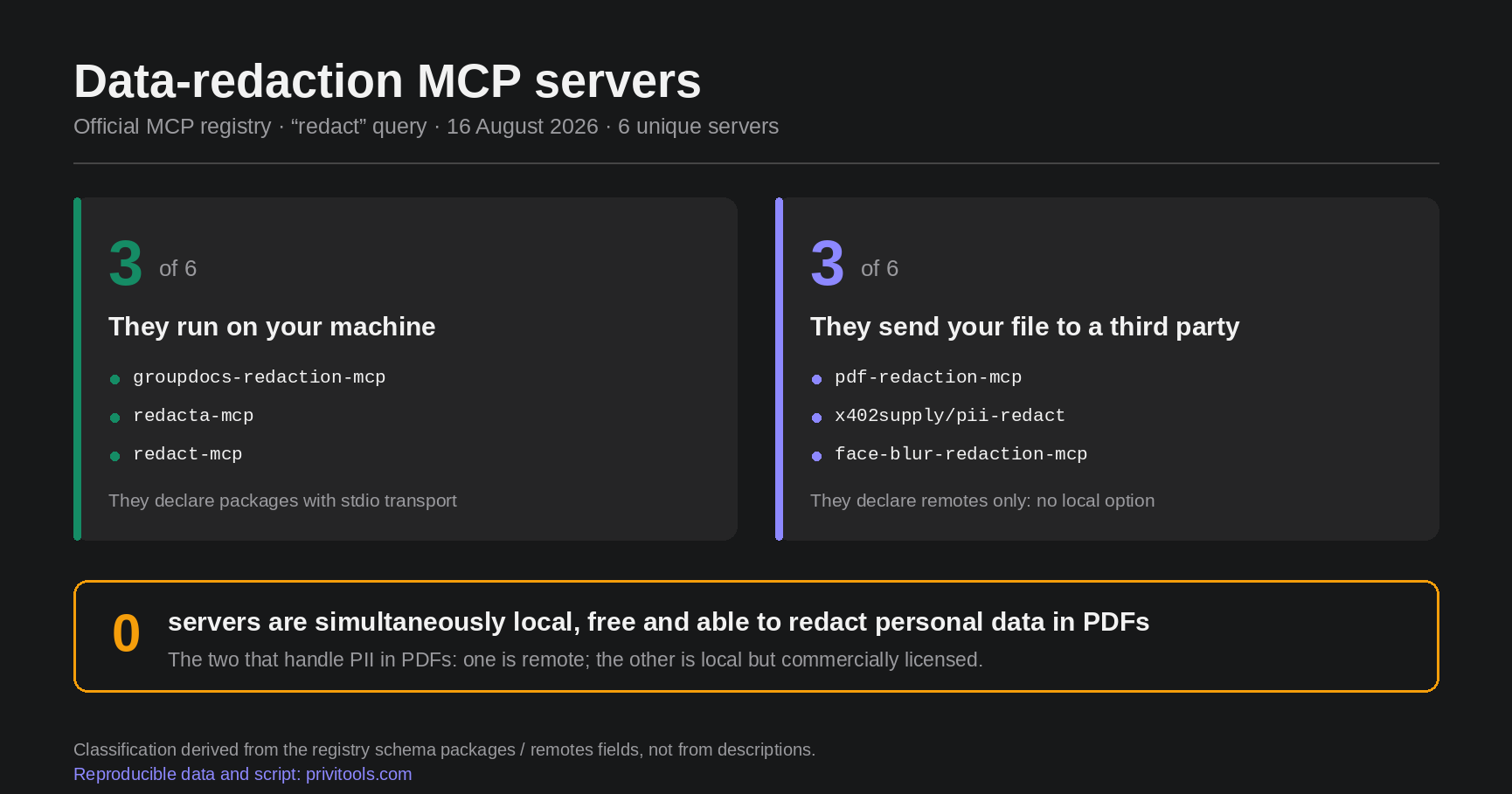 When AI redacts your PDF, where does the file go?
 How to audit a browser-based file tool without trusting its privacy claim